Your browser could not start Mavowow

Update your browser, then reload this page. Mavowow supports Chrome and Edge 85 or later, Firefox 79 or later, and Safari and iOS Safari 14 or later.

Reload Mavowow

Mavowow did not finish loading

Check your network connection and reload this page. If the problem continues, clear your browser cache and try again.

Reload Mavowow
MavowowMavowow
HomeWorkspace
AI Ecommerce

Ecommerce tools

  • Product suiteTurn one product image into a complete listing suite
  • A+ contentTurn product benefits into detail-page modules
  • SKU batchCreate consistent SKU color and background variants
  • AI Product Photo Composition ReferenceCreate a product visual from a composition reference
  • Product retouchRefine product materials, lighting and clarity
  • Product recolorSpecify the target area and color for SKU variants
  • AI Product Background ChangerCreate a new product background from text or a reference
  • Outfit image setCreate white-background, dimensional, mannequin and campaign apparel sets
  • AI Fashion Model Photos from Clothing ImagesTurn a garment image into an on-model visual
  • AI Accessory Try-onTurn an accessory image into a natural on-model visual
  • Model pose changeChange a model pose with smart, text or reference controls
  • AI model face swapKeep the styling and scene while replacing the model face
  • AI shoe try-onTurn a shoe image into a focused try-on visual
Generation tasksPricing
API
Product updates
  • Oct 9NewNano Banana 2.1 is here, with a limited-time 50% discountWant to explore a new image or give an existing one a fresh look? Nano Banana 2.1 is now available for image generation and editing, with output up to 4K and a limited-time 50% discount.
  • Oct 712 new AI E-commerce tools for product photos and virtual try-onBuilding on the existing Product Suite, Mavowow now offers 12 more AI E-commerce tools for A+ Content, SKU images, product retouching, background replacement, apparel visuals, and virtual try-on. There are now 13 tools covering everyday e-commerce image creation.
View all updates
  • English
  • 中文
MavowowMavowow
APIChangelogHomeWorkspace
AI Ecommerce
  • Product suiteTurn one product image into a complete listing suite
  • A+ contentTurn product benefits into detail-page modules
  • SKU batchCreate consistent SKU color and background variants
  • AI Product Photo Composition ReferenceCreate a product visual from a composition reference
  • Product retouchRefine product materials, lighting and clarity
  • Product recolorSpecify the target area and color for SKU variants
  • AI Product Background ChangerCreate a new product background from text or a reference
  • Outfit image setCreate white-background, dimensional, mannequin and campaign apparel sets
  • AI Fashion Model Photos from Clothing ImagesTurn a garment image into an on-model visual
  • AI Accessory Try-onTurn an accessory image into a natural on-model visual
  • Model pose changeChange a model pose with smart, text or reference controls
  • AI model face swapKeep the styling and scene while replacing the model face
  • AI shoe try-onTurn a shoe image into a focused try-on visual
Generation tasksPricing
  • English
  • 中文
  1. AI Ecommerce
  2. /Ecommerce tool
    • Product suite
    • A+ content
    • SKU batch
    • AI Product Photo Composition Reference
    • Product retouch
    • Product recolor
    • AI Product Background Changer
    • Outfit image set
    • AI Fashion Model Photos from Clothing Images
    • AI Accessory Try-on
    • Model pose change
    • AI model face swap
    • AI shoe try-on

Product recolor

Examples illustrate creative directions. Review product details, text and source rights before listing. Try-on visuals do not establish physical fit.

01

Upload image

Upload one clear product image while preserving structure and material

Product imageRequired; one image supported
02

Recolor settings

Choose the target color, recolor area, and output settings

Target color Required

Choose a common color or enter a custom one

Leave blank to recolor the product’s main colored area

Output ratio
Resolution

Add details or color requirements to preserve

0 / 200
Cost—

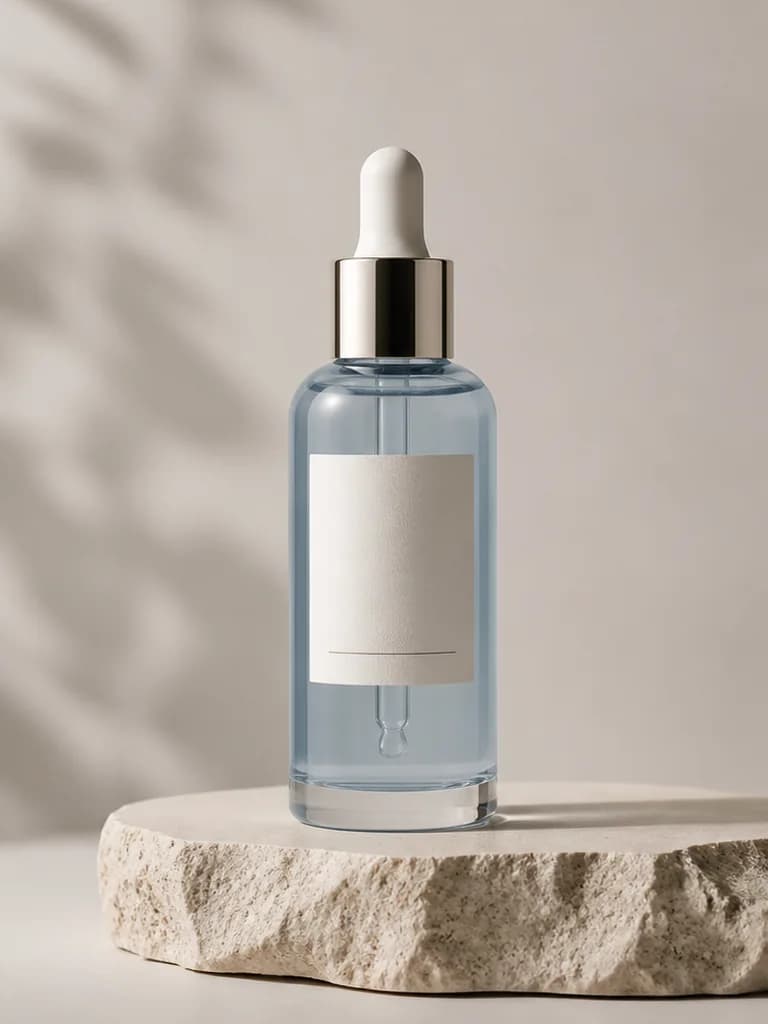
Skincare packaging recolor
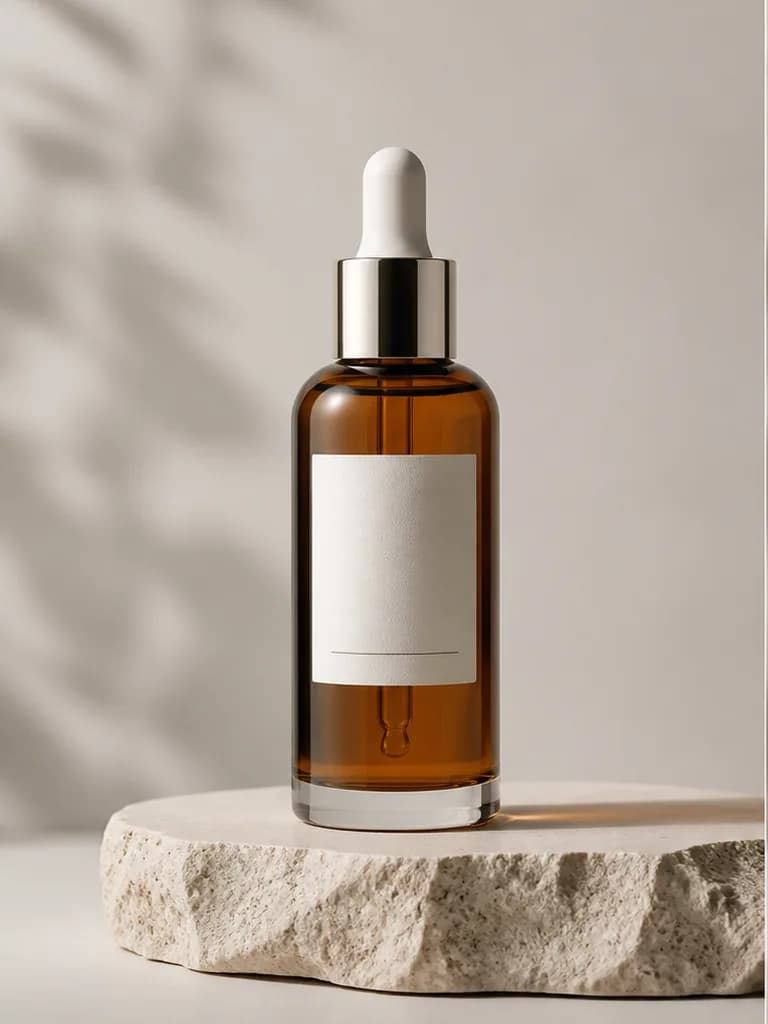
  1. Amber serum product image before recolor
    Original
    →
  2. Mist-blue serum bottle with material and label preserved
    Recolored

Recent recolors

Loading recent results
FAQ

Frequently asked questions

Each Product Recolor task currently uses one product image and one target color to create a color variant. Submit separate recolor tasks for additional colors. Use SKU Batch when you also need to organize a set of variants by size, material or style labels.

Describe the part to change and the parts to retain in Recolor area. For example: change only the sofa upholstery and retain the wooden arms, stitching and metal legs. The area is specified in text; the page has no manual mask-painting control. Inspect boundaries and adjacent parts for unintended changes.

The default target is the product's main colored area. Specify the area when the item has mixed materials, color blocking or accessories so leather, metal, fabric and logos are not all interpreted as edit targets. You can also state which background or other regions should remain unchanged in the additional instructions.

Choose a preset, use the color picker or enter a six-digit HEX value such as #556B2F. There is no separate color-reference image upload in this tool. A color code expresses the target; lighting and material affect the generated appearance. Compare listing results with physical color samples and actual available variants.

Lighting, shadows, material reflections and display devices affect color appearance, and AI may reinterpret the material. Start with a color-accurate source and request retained texture and lighting detail. Confirm final SKU colors against real items rather than treating a generated image or HEX value as physical color verification.

Emphasize the required surface features, such as leather grain and stitching or knitted texture and fold shadows. An overexposed or indistinct source provides little evidence to preserve. Review highlights, reflections, texture and edges so the target color does not come with a different material.

Use Product Recolor for one target color in an existing image or a specifically described local area. Use SKU Batch to create separate images from complete color, size, material or style labels with shared visual settings. SKU labels organize variants; they are not controls for recoloring several regions independently in one image.

Confirm the color corresponds to an actual available or confirmed physical variant, then check image-to-label matching. Inspect logos, zips, buttons, panels, shadows and backgrounds as well as the main color. Metal fittings or packaging with separate color rules should not change automatically with the main product.