Your browser could not start Mavowow

Update your browser, then reload this page. Mavowow supports Chrome and Edge 85 or later, Firefox 79 or later, and Safari and iOS Safari 14 or later.

Reload Mavowow

Mavowow did not finish loading

Check your network connection and reload this page. If the problem continues, clear your browser cache and try again.

Reload Mavowow

MavowowMavowow
HomeWorkspace
AI Ecommerce

Ecommerce tools

  • Product suiteTurn one product image into a complete listing suite
  • A+ contentTurn product benefits into detail-page modules
  • SKU batchCreate consistent SKU color and background variants
  • AI Product Photo Composition ReferenceCreate a product visual from a composition reference
  • Product retouchRefine product materials, lighting and clarity
  • Product recolorSpecify the target area and color for SKU variants
  • AI Product Background ChangerCreate a new product background from text or a reference
  • Outfit image setCreate white-background, dimensional, mannequin and campaign apparel sets
  • AI Fashion Model Photos from Clothing ImagesTurn a garment image into an on-model visual
  • AI Accessory Try-onTurn an accessory image into a natural on-model visual
  • Model pose changeChange a model pose with smart, text or reference controls
  • AI model face swapKeep the styling and scene while replacing the model face
  • AI shoe try-onTurn a shoe image into a focused try-on visual
Generation tasksPricing
API
Product updates
  • Oct 9NewNano Banana 2.1 is here, with a limited-time 50% discountWant to explore a new image or give an existing one a fresh look? Nano Banana 2.1 is now available for image generation and editing, with output up to 4K and a limited-time 50% discount.
  • Oct 712 new AI E-commerce tools for product photos and virtual try-onBuilding on the existing Product Suite, Mavowow now offers 12 more AI E-commerce tools for A+ Content, SKU images, product retouching, background replacement, apparel visuals, and virtual try-on. There are now 13 tools covering everyday e-commerce image creation.
View all updates
  • English
  • 中文
MavowowMavowow
APIChangelogHomeWorkspace
AI Ecommerce
  • Product suiteTurn one product image into a complete listing suite
  • A+ contentTurn product benefits into detail-page modules
  • SKU batchCreate consistent SKU color and background variants
  • AI Product Photo Composition ReferenceCreate a product visual from a composition reference
  • Product retouchRefine product materials, lighting and clarity
  • Product recolorSpecify the target area and color for SKU variants
  • AI Product Background ChangerCreate a new product background from text or a reference
  • Outfit image setCreate white-background, dimensional, mannequin and campaign apparel sets
  • AI Fashion Model Photos from Clothing ImagesTurn a garment image into an on-model visual
  • AI Accessory Try-onTurn an accessory image into a natural on-model visual
  • Model pose changeChange a model pose with smart, text or reference controls
  • AI model face swapKeep the styling and scene while replacing the model face
  • AI shoe try-onTurn a shoe image into a focused try-on visual
Generation tasksPricing
  • English
  • 中文
  1. AI Ecommerce
  2. /Ecommerce tool
    • Product suite
    • A+ content
    • SKU batch
    • AI Product Photo Composition Reference
    • Product retouch
    • Product recolor
    • AI Product Background Changer
    • Outfit image set
    • AI Fashion Model Photos from Clothing Images
    • AI Accessory Try-on
    • Model pose change
    • AI model face swap
    • AI shoe try-on

AI Product Background Changer

Examples illustrate creative directions. Review product details, text and source rights before listing. Try-on visuals do not establish physical fit.

01

Upload images

Upload the product and choose a text or reference-image background

Background source
Product imageRequired; preserves the product
02

Background settings

Describe the target background and choose output settings

Describe the environment, materials, light, or mood

0 / 500
Output ratio
Resolution
Cost—

Skincare atmosphere

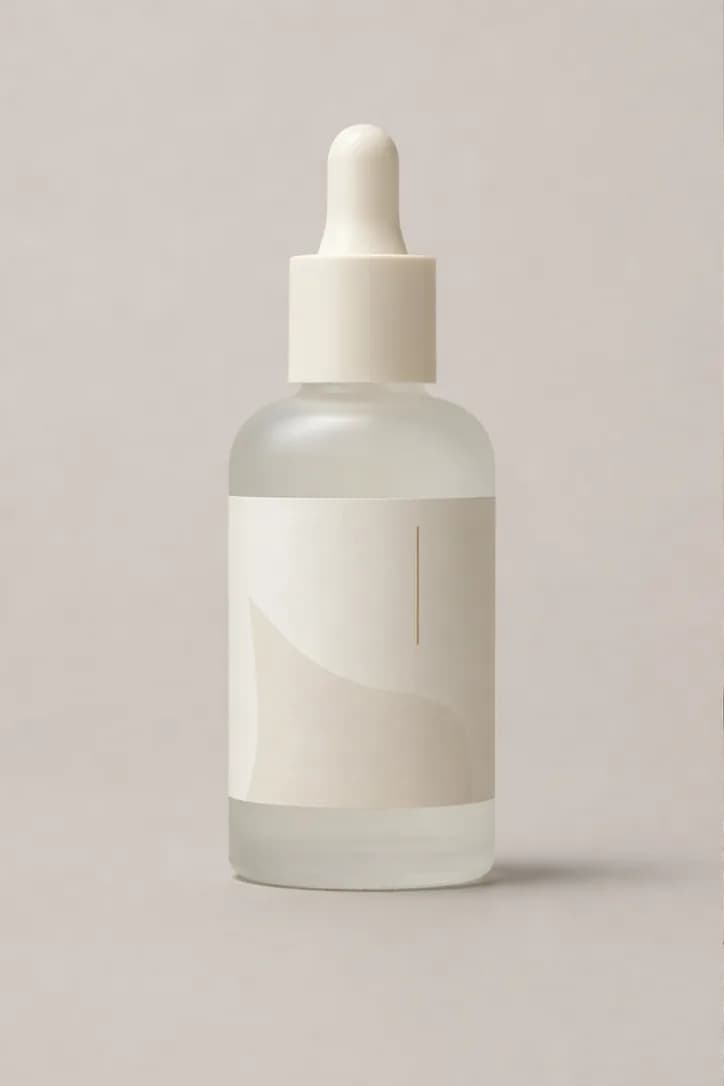
  1. Skincare serum product on a plain background
    Original
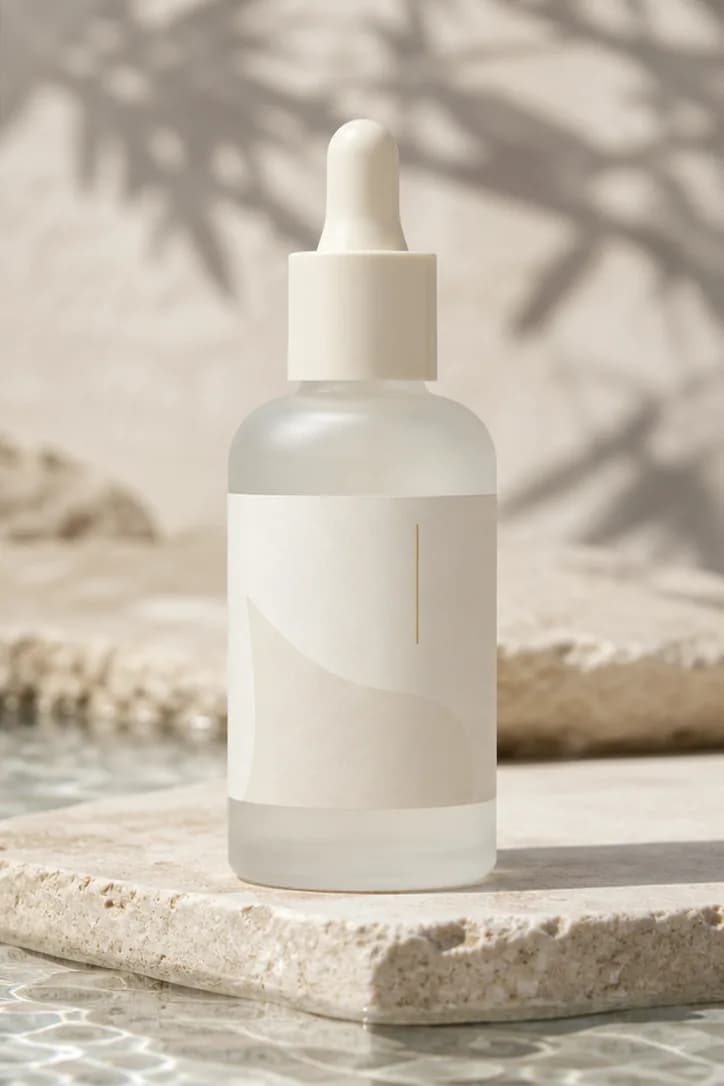
  2. Skincare serum in a morning-light water scene
    New background

Recent backgrounds

Loading recent results
FAQ

Frequently asked questions

The current tool mainly creates new product scenes from text or a background reference; you can also describe a white background. It differs from cutout-only removal and has no separate transparent-background export option. Use a tool that explicitly supports transparent cutouts when needed, and check product edges and details after generation.

Use text when you can describe the setting, such as a pale stone counter with soft light from the left. Use a reference when you have a specific visual direction. Both need a product image; reference mode also needs a background image and allows optional notes for additional detail.

Upload one complete product image with clear outlines and colors close to the real item. Check whether stands, hands or clutter touching the product make it hard to identify. Transparent bottles, thin handles and reflective edges need especially clear references and close review after background replacement.

Specify the environment, supporting surface, lighting and intended layout. For example: a coffee machine on a pale travertine kitchen counter, morning light from the left, with room for a heading at the upper right. Generic style adjectives do not explain where the product belongs. The current description limit is 500 characters; prioritize spatial relationships.

Choose reference mode and upload separate product and background images. Add notes about what to keep or omit, such as retaining the stone surface and side light without the vase. The reference guides the setting; your product image supplies the product. Check for leaked reference products or extra props.

Specify the direction, approximate area and excluded elements in the background instructions, such as placing the product left with a clear, prop-free area on the right. Choose a ratio suitable for the intended placement. Generated clear space is not a precise layout frame; confirm final text placement and safety margins during design.

Describe contact with the supporting surface and the light direction, such as keeping the bottle base on the tabletop with a natural contact shadow and light from the upper left. Use a reference with compatible perspective. Review perspective, contact points, shadows and reflections together rather than checking background color alone.

These are important product details to preserve and verify, but generative editing does not guarantee pixel-identical retention. Compare small text, logos, bottle openings, edges and glass refraction against the source at full size. Correct misspelled text, shifted labels or altered materials before using the image for product presentation.