Your browser could not start Mavowow

Update your browser, then reload this page. Mavowow supports Chrome and Edge 85 or later, Firefox 79 or later, and Safari and iOS Safari 14 or later.

Reload Mavowow

Mavowow did not finish loading

Check your network connection and reload this page. If the problem continues, clear your browser cache and try again.

Reload Mavowow
MavowowMavowow
HomeWorkspace
AI Ecommerce

Ecommerce tools

  • Product suiteTurn one product image into a complete listing suite
  • A+ contentTurn product benefits into detail-page modules
  • SKU batchCreate consistent SKU color and background variants
  • AI Product Photo Composition ReferenceCreate a product visual from a composition reference
  • Product retouchRefine product materials, lighting and clarity
  • Product recolorSpecify the target area and color for SKU variants
  • AI Product Background ChangerCreate a new product background from text or a reference
  • Outfit image setCreate white-background, dimensional, mannequin and campaign apparel sets
  • AI Fashion Model Photos from Clothing ImagesTurn a garment image into an on-model visual
  • AI Accessory Try-onTurn an accessory image into a natural on-model visual
  • Model pose changeChange a model pose with smart, text or reference controls
  • AI model face swapKeep the styling and scene while replacing the model face
  • AI shoe try-onTurn a shoe image into a focused try-on visual
Generation tasksPricing
API
Product updates
  • Oct 9NewNano Banana 2.1 is here, with a limited-time 50% discountWant to explore a new image or give an existing one a fresh look? Nano Banana 2.1 is now available for image generation and editing, with output up to 4K and a limited-time 50% discount.
  • Oct 712 new AI E-commerce tools for product photos and virtual try-onBuilding on the existing Product Suite, Mavowow now offers 12 more AI E-commerce tools for A+ Content, SKU images, product retouching, background replacement, apparel visuals, and virtual try-on. There are now 13 tools covering everyday e-commerce image creation.
View all updates
  • English
  • 中文
MavowowMavowow
APIChangelogHomeWorkspace
AI Ecommerce
  • Product suiteTurn one product image into a complete listing suite
  • A+ contentTurn product benefits into detail-page modules
  • SKU batchCreate consistent SKU color and background variants
  • AI Product Photo Composition ReferenceCreate a product visual from a composition reference
  • Product retouchRefine product materials, lighting and clarity
  • Product recolorSpecify the target area and color for SKU variants
  • AI Product Background ChangerCreate a new product background from text or a reference
  • Outfit image setCreate white-background, dimensional, mannequin and campaign apparel sets
  • AI Fashion Model Photos from Clothing ImagesTurn a garment image into an on-model visual
  • AI Accessory Try-onTurn an accessory image into a natural on-model visual
  • Model pose changeChange a model pose with smart, text or reference controls
  • AI model face swapKeep the styling and scene while replacing the model face
  • AI shoe try-onTurn a shoe image into a focused try-on visual
Generation tasksPricing
  • English
  • 中文
  1. AI Ecommerce
  2. /Ecommerce tool
    • Product suite
    • A+ content
    • SKU batch
    • AI Product Photo Composition Reference
    • Product retouch
    • Product recolor
    • AI Product Background Changer
    • Outfit image set
    • AI Fashion Model Photos from Clothing Images
    • AI Accessory Try-on
    • Model pose change
    • AI model face swap
    • AI shoe try-on

Model pose change

Examples illustrate creative directions. Review product details, text and source rights before listing. Try-on visuals do not establish physical fit.

01

Pose method

Choose smart, text, or reference-image pose control

Choose pose method

AI automatically chooses a pose that fits the image.

02

Upload images

Upload the model image whose person, outfit, and scene should be preserved

Model imageRequired; preserves the person, outfit, and scene
03

Generation settings

Set pose direction, aspect ratio, and independent task count

Output ratio
Number of images

Each image is an independent task with a different pose direction

Cost—

Minimal workwear poses
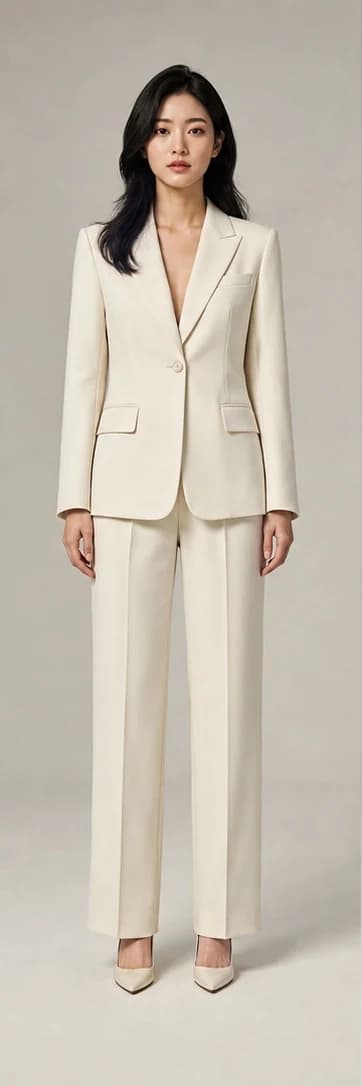
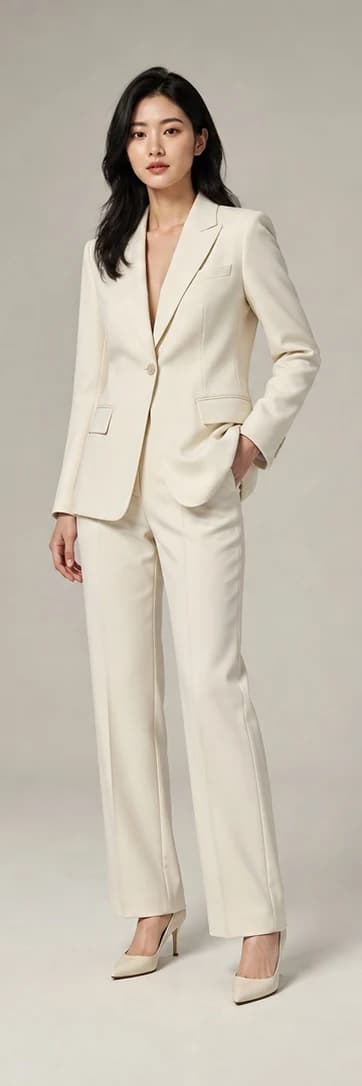
Original model for Minimal workwear poses
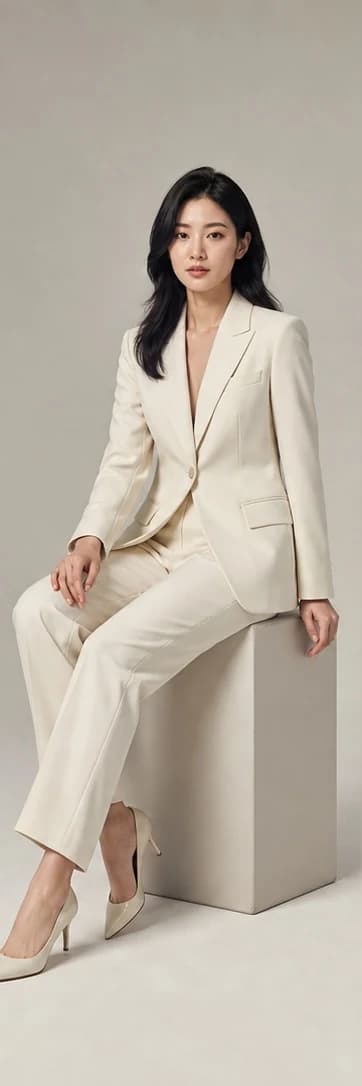
Original
→
Minimal workwear poses result pose 1
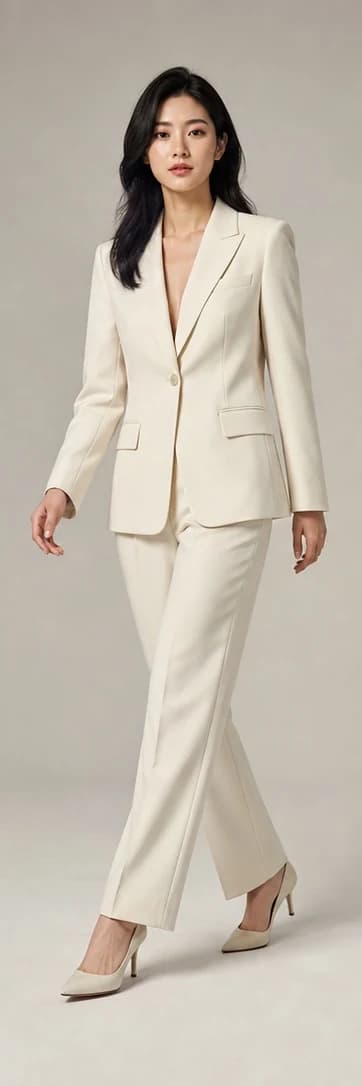
Result 1
Minimal workwear poses result pose 2
Result 2
Minimal workwear poses result pose 3
Result 3

Recent results

Loading recent results
FAQ

Frequently asked questions

Use an existing product model image with smart, text or pose-reference controls to create a different stance, seated pose or side-facing presentation. The workflow aims to retain the person and outfit. After changing the pose, review identity, garment detail and body structure.

Use smart mode to explore poses without a fixed target, text mode for a specific action you can describe, or reference mode when you have an example pose. All modes need the original model image. Text mode also requires a pose description; reference mode needs a separate pose image.

The pose reference guides movement and body balance. The original model image should supply the person, clothing and scene. Choose a reference with clear limbs and minimal occlusion, and use a different image from the original. Still inspect the result for styling or scenery that leaked from the reference.

State whether the person is standing or seated, their body direction, hand and foot placement, and gaze. The current description limit is 200 characters. For example: turn slightly right, lower the right arm, rest the left hand at the waist, and look at the camera. Avoid conflicting actions or excessive style directions unrelated to the pose.

Choose from the available image-count options. Each image is an independent task and may use a different pose direction. Available concurrency limits the selectable count, and image, video or other ecommerce tasks may occupy slots. Check quantity and credits before submitting, then select results individually; they are not continuous video frames.

The tool aims to retain the original person, outfit and scene, but generative pose edits can affect faces, folds, details or backgrounds. Start with clear references and compare the output. Pay particular attention to garment areas revealed by the new pose: inferred construction is not photographic evidence.

You can request side-facing or turning poses through text or a pose reference. However, unseen clothing areas may be inferred. A front image cannot establish the real back slit, pockets or print. Use actual side or back photographs as evidence when those details need accurate presentation.

Check the intended action and anatomy first, including fingers, joints, balance and proportions. Then compare collars, cuffs, hems, patterns and accessories to ensure the product was not obscured or redesigned. If the selling point is a cuff or waistline, favor a pose that clearly reveals it.