Your browser could not start Mavowow

Update your browser, then reload this page. Mavowow supports Chrome and Edge 85 or later, Firefox 79 or later, and Safari and iOS Safari 14 or later.

Reload Mavowow

Mavowow did not finish loading

Check your network connection and reload this page. If the problem continues, clear your browser cache and try again.

Reload Mavowow
MavowowMavowow
HomeWorkspace
AI Ecommerce

Ecommerce tools

  • Product suiteTurn one product image into a complete listing suite
  • A+ contentTurn product benefits into detail-page modules
  • SKU batchCreate consistent SKU color and background variants
  • AI Product Photo Composition ReferenceCreate a product visual from a composition reference
  • Product retouchRefine product materials, lighting and clarity
  • Product recolorSpecify the target area and color for SKU variants
  • AI Product Background ChangerCreate a new product background from text or a reference
  • Outfit image setCreate white-background, dimensional, mannequin and campaign apparel sets
  • AI Fashion Model Photos from Clothing ImagesTurn a garment image into an on-model visual
  • AI Accessory Try-onTurn an accessory image into a natural on-model visual
  • Model pose changeChange a model pose with smart, text or reference controls
  • AI model face swapKeep the styling and scene while replacing the model face
  • AI shoe try-onTurn a shoe image into a focused try-on visual
Generation tasksPricing
API
Product updates
  • Oct 9NewNano Banana 2.1 is here, with a limited-time 50% discountWant to explore a new image or give an existing one a fresh look? Nano Banana 2.1 is now available for image generation and editing, with output up to 4K and a limited-time 50% discount.
  • Oct 712 new AI E-commerce tools for product photos and virtual try-onBuilding on the existing Product Suite, Mavowow now offers 12 more AI E-commerce tools for A+ Content, SKU images, product retouching, background replacement, apparel visuals, and virtual try-on. There are now 13 tools covering everyday e-commerce image creation.
View all updates
  • English
  • 中文
MavowowMavowow
APIChangelogHomeWorkspace
AI Ecommerce
  • Product suiteTurn one product image into a complete listing suite
  • A+ contentTurn product benefits into detail-page modules
  • SKU batchCreate consistent SKU color and background variants
  • AI Product Photo Composition ReferenceCreate a product visual from a composition reference
  • Product retouchRefine product materials, lighting and clarity
  • Product recolorSpecify the target area and color for SKU variants
  • AI Product Background ChangerCreate a new product background from text or a reference
  • Outfit image setCreate white-background, dimensional, mannequin and campaign apparel sets
  • AI Fashion Model Photos from Clothing ImagesTurn a garment image into an on-model visual
  • AI Accessory Try-onTurn an accessory image into a natural on-model visual
  • Model pose changeChange a model pose with smart, text or reference controls
  • AI model face swapKeep the styling and scene while replacing the model face
  • AI shoe try-onTurn a shoe image into a focused try-on visual
Generation tasksPricing
  • English
  • 中文
  1. AI Ecommerce
  2. /Ecommerce tool
    • Product suite
    • A+ content
    • SKU batch
    • AI Product Photo Composition Reference
    • Product retouch
    • Product recolor
    • AI Product Background Changer
    • Outfit image set
    • AI Fashion Model Photos from Clothing Images
    • AI Accessory Try-on
    • Model pose change
    • AI model face swap
    • AI shoe try-on

AI shoe try-on

Examples illustrate creative directions. Review product details, text and source rights before listing. Try-on visuals do not establish physical fit.

01

Upload images

Upload shoe references and choose an AI or custom model

Model source
Shoe imagesAdd 1–4 images; front, side, back, or sole views are recommended0/4
02

Try-on settings

Set the model, framing, and output settings

Gender
  • Default
  • Infant
  • Child
  • Teen
  • Young adult
  • Middle-aged
  • Senior
  • Default
  • Western
  • Chinese
  • Other Asian
  • African descent
  • Latino
  • Shoe close-up
  • Lower-body styling
Output ratio

Add pose, scene, socks, or lower-body styling requests

0 / 200
Cost—

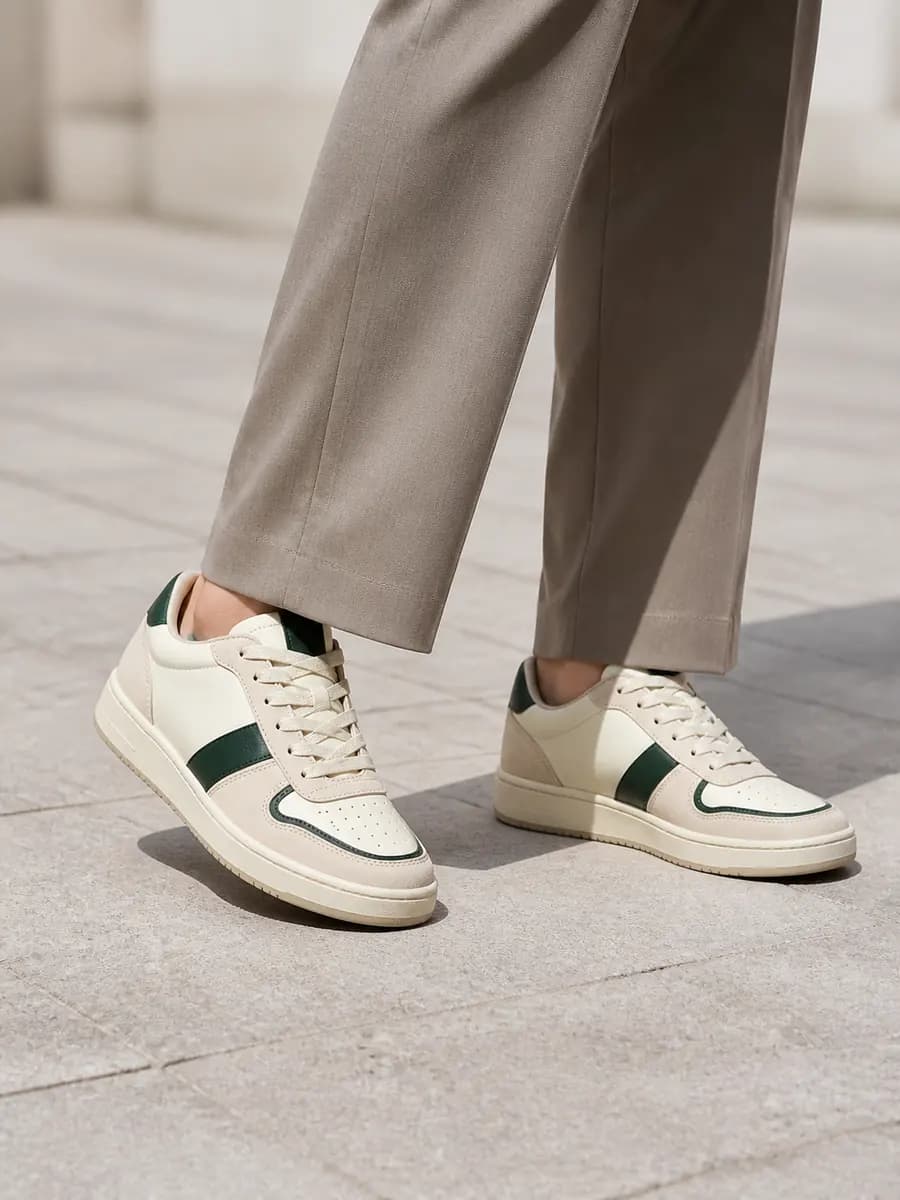
Sneaker street try-on
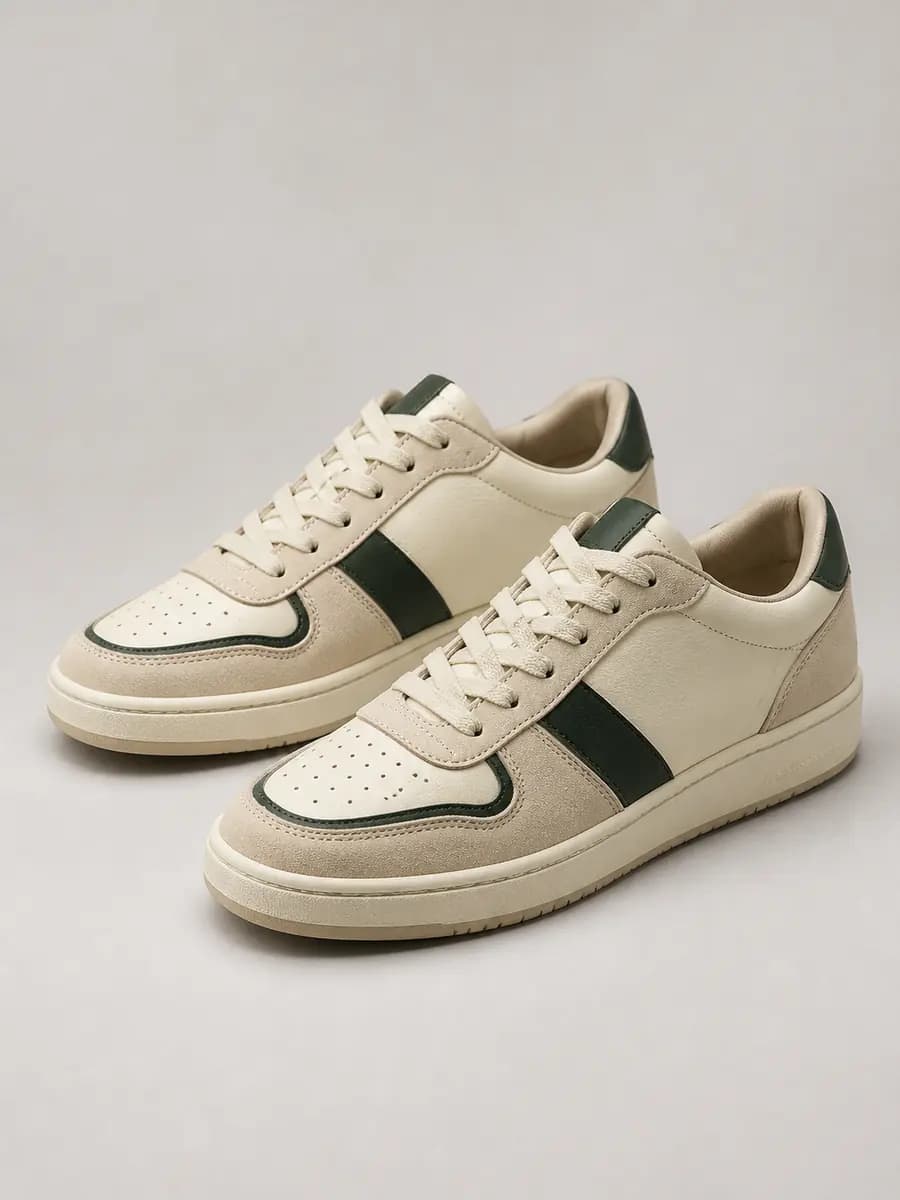
  1. Cream and forest-green sneaker product image
    Shoe image
    →
  2. Lower-leg model wearing the same sneakers in a street scene
    Try-on result

Recent shoe try-ons

Loading recent results
FAQ

Frequently asked questions

Upload shoe product images and choose an AI model, or use custom mode when you have a particular person image. Set framing and aspect ratio for listings, detail pages or styling assets. Generated images do not establish real wearing comfort or fit.

The current flow accepts 1–4 images of the same footwear. Front views show the toe and upper; side views show the silhouette and sole thickness; back and sole views provide their respective details. Add references for the intended presentation, without mixing shoe models or colors. Unseen areas may be inferred.

Use one image with clearly visible legs and both feet, and minimal obstruction around the footwear. Cropped feet, trousers covering the entire upper or heavily crossed legs make placement harder to review. Choose a pose close to the intended presentation and leave room for the toe, heel and ground contact.

Use optional notes for socks, lower-body styling, pose and scenery, up to 200 characters. For example: white ankle socks, beige straight-leg trousers, fully visible uppers and soles, urban pavement. Prioritize showing the shoe and avoid long trouser hems or complex props that obscure it.

Use the available framing, aspect-ratio and instruction controls to request a footwear focus or include lower-body styling. Close views need visible uppers, soles and fittings; styling images should avoid obscuring the shoes with trouser hems. Decide the purpose during generation rather than treating a crop from a distant scene as evidence-rich product detail.

Check that the shoes form a sensible left/right pair, then inspect shoe openings at the ankles, ground contact, shadows and balance. Verify toe shape, lace holes, sole patterns and logos. An accurate-looking shoe with unnatural contact still needs correction before product use.

Prefer references of the same model and intended color in each submission so the model does not combine uppers, soles or decorations from different versions. Prepare and submit each color separately. Use Product Recolor when making one target-color edit from an existing image, and verify it against the actual available variant.

No. Generated foot proportions, interior space and gait are not real try-on measurements. They cannot establish sizing, support, softness or prolonged walking comfort. Use size charts, measurements and actual tests for those claims; AI on-foot imagery mainly presents shoe shape and styling relationships.