Your browser could not start Mavowow

Update your browser, then reload this page. Mavowow supports Chrome and Edge 85 or later, Firefox 79 or later, and Safari and iOS Safari 14 or later.

Reload Mavowow

Mavowow did not finish loading

Check your network connection and reload this page. If the problem continues, clear your browser cache and try again.

Reload Mavowow
MavowowMavowow
HomeWorkspace
AI Ecommerce

Ecommerce tools

  • Product suiteTurn one product image into a complete listing suite
  • A+ contentTurn product benefits into detail-page modules
  • SKU batchCreate consistent SKU color and background variants
  • AI Product Photo Composition ReferenceCreate a product visual from a composition reference
  • Product retouchRefine product materials, lighting and clarity
  • Product recolorSpecify the target area and color for SKU variants
  • AI Product Background ChangerCreate a new product background from text or a reference
  • Outfit image setCreate white-background, dimensional, mannequin and campaign apparel sets
  • AI Fashion Model Photos from Clothing ImagesTurn a garment image into an on-model visual
  • AI Accessory Try-onTurn an accessory image into a natural on-model visual
  • Model pose changeChange a model pose with smart, text or reference controls
  • AI model face swapKeep the styling and scene while replacing the model face
  • AI shoe try-onTurn a shoe image into a focused try-on visual
Generation tasksPricing
API
Product updates
  • Oct 9NewNano Banana 2.1 is here, with a limited-time 50% discountWant to explore a new image or give an existing one a fresh look? Nano Banana 2.1 is now available for image generation and editing, with output up to 4K and a limited-time 50% discount.
  • Oct 712 new AI E-commerce tools for product photos and virtual try-onBuilding on the existing Product Suite, Mavowow now offers 12 more AI E-commerce tools for A+ Content, SKU images, product retouching, background replacement, apparel visuals, and virtual try-on. There are now 13 tools covering everyday e-commerce image creation.
View all updates
  • English
  • 中文
MavowowMavowow
APIChangelogHomeWorkspace
AI Ecommerce
  • Product suiteTurn one product image into a complete listing suite
  • A+ contentTurn product benefits into detail-page modules
  • SKU batchCreate consistent SKU color and background variants
  • AI Product Photo Composition ReferenceCreate a product visual from a composition reference
  • Product retouchRefine product materials, lighting and clarity
  • Product recolorSpecify the target area and color for SKU variants
  • AI Product Background ChangerCreate a new product background from text or a reference
  • Outfit image setCreate white-background, dimensional, mannequin and campaign apparel sets
  • AI Fashion Model Photos from Clothing ImagesTurn a garment image into an on-model visual
  • AI Accessory Try-onTurn an accessory image into a natural on-model visual
  • Model pose changeChange a model pose with smart, text or reference controls
  • AI model face swapKeep the styling and scene while replacing the model face
  • AI shoe try-onTurn a shoe image into a focused try-on visual
Generation tasksPricing
  • English
  • 中文
  1. AI Ecommerce
  2. /Ecommerce tool
    • Product suite
    • A+ content
    • SKU batch
    • AI Product Photo Composition Reference
    • Product retouch
    • Product recolor
    • AI Product Background Changer
    • Outfit image set
    • AI Fashion Model Photos from Clothing Images
    • AI Accessory Try-on
    • Model pose change
    • AI model face swap
    • AI shoe try-on

AI Accessory Try-on

Examples illustrate creative directions. Review product details, text and source rights before listing. Try-on visuals do not establish physical fit.

01

Upload images

Upload an accessory and choose an AI or custom model

Model source
Accessory imageRequired; use a complete product with clear materials and structure
02

Try-on settings

Confirm the accessory type, model, and output ratio

  • Auto detect
  • Hat
  • Eyewear
  • Scarf / shawl
  • Necklace
  • Earrings
  • Watch
  • Bracelet
  • Belt
  • Handbag
  • Shoulder / crossbody bag
Gender
  • Default
  • Infant
  • Child
  • Teen
  • Young adult
  • Middle-aged
  • Senior
  • Default
  • Western
  • Chinese
  • Other Asian
  • African descent
  • Latino
  • Standard
  • Slim
  • Muscular
Output ratio

Add scene, styling, or placement preferences

0 / 200
Cost—

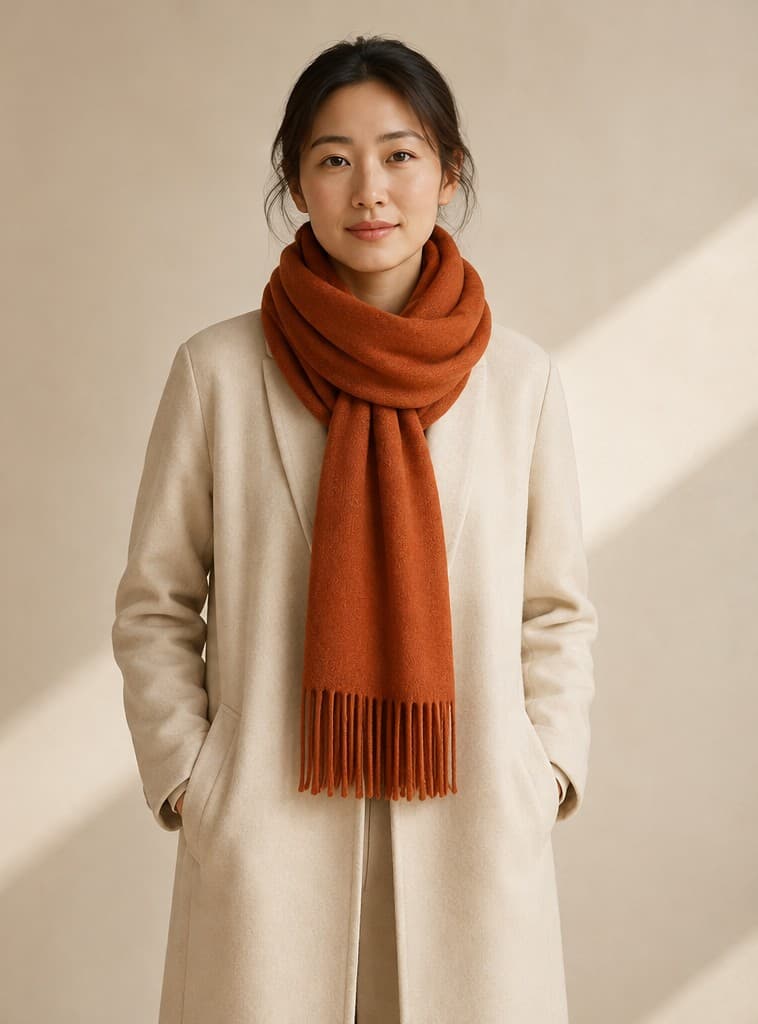
Natural scarf styling
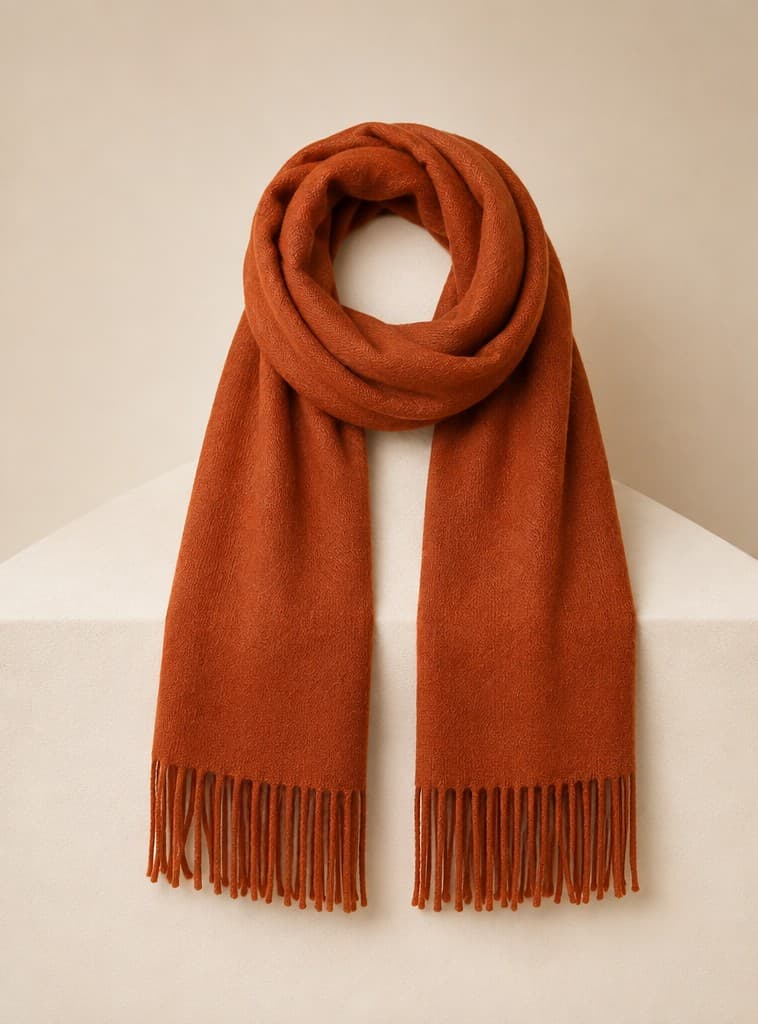
  1. Rust-orange scarf product image
    Accessory
    →
  2. Model wearing the same rust-orange scarf
    Try-on result

Recent results

Loading recent results
FAQ

Frequently asked questions

Upload an accessory product photo and choose an AI model, or supply a custom model image. Current categories include glasses, necklaces, earrings, watches, hats, scarves, bracelets, belts and bags. Use clear outlines and details, then review both the accessory and how it sits on the model.

Choose an AI model when no specific person is required, and set gender, age group, appearance and body type. Choose custom mode to use a supplied person image. The wearing area should be visible: glasses need a clear face and ears, while watches need a visible wrist.

Upload one complete accessory image with clear outlines, material, fastenings and wearing orientation. Transparent lenses, reflective metal and fine chains can blend into the background, so use a well-defined photo without blown highlights. Do not combine different sizes or designs into one image and expect them to be tried on together.

The image can illustrate placement, but does not guarantee scale to real centimeter measurements. Describe the wearing area, orientation and presentation focus, then compare against product photos and known dimensions. Check glasses at the nose and ears, chains at the neck, and straps at the wrist. A natural-looking person alone does not establish product accuracy.

Check chain direction, apparent length and pendant count for necklaces; paired earrings and their attachment to the earlobes; and watch orientation, strap closure and wrist contact. Emphasize essential construction in the instructions. Verify material color, logos and fittings as well as the appearance of the person.

Select the matching bag category and describe how it should be carried, for example on the right shoulder with the front clasp fully visible. A custom model photo needs suitable hand or shoulder space. Check that straps do not pass through the body, attachment points make sense, and the bag has plausible relative scale.

The current tool generates model images for listings, detail pages and marketing. It does not offer a live shopper-camera try-on flow or measure personal fit. To create a presentation featuring a particular person, upload their image in custom model mode.

Check the accessory category and whether the model image exposes the intended wearing area. If needed, use a better angle and specify placement, such as keeping ears unobstructed and showing the entire earring without extra jewelry. Review contact, occlusion and product structure after generating again, rather than checking scale alone.